

One page, the whole story
How your agent is wired, what it was tested on, what broke and how to fix it.Live from the first minute
It opens when the simulation starts and fills in stage by stage.No code reading required
Product, support and domain experts can follow along, not just engineers.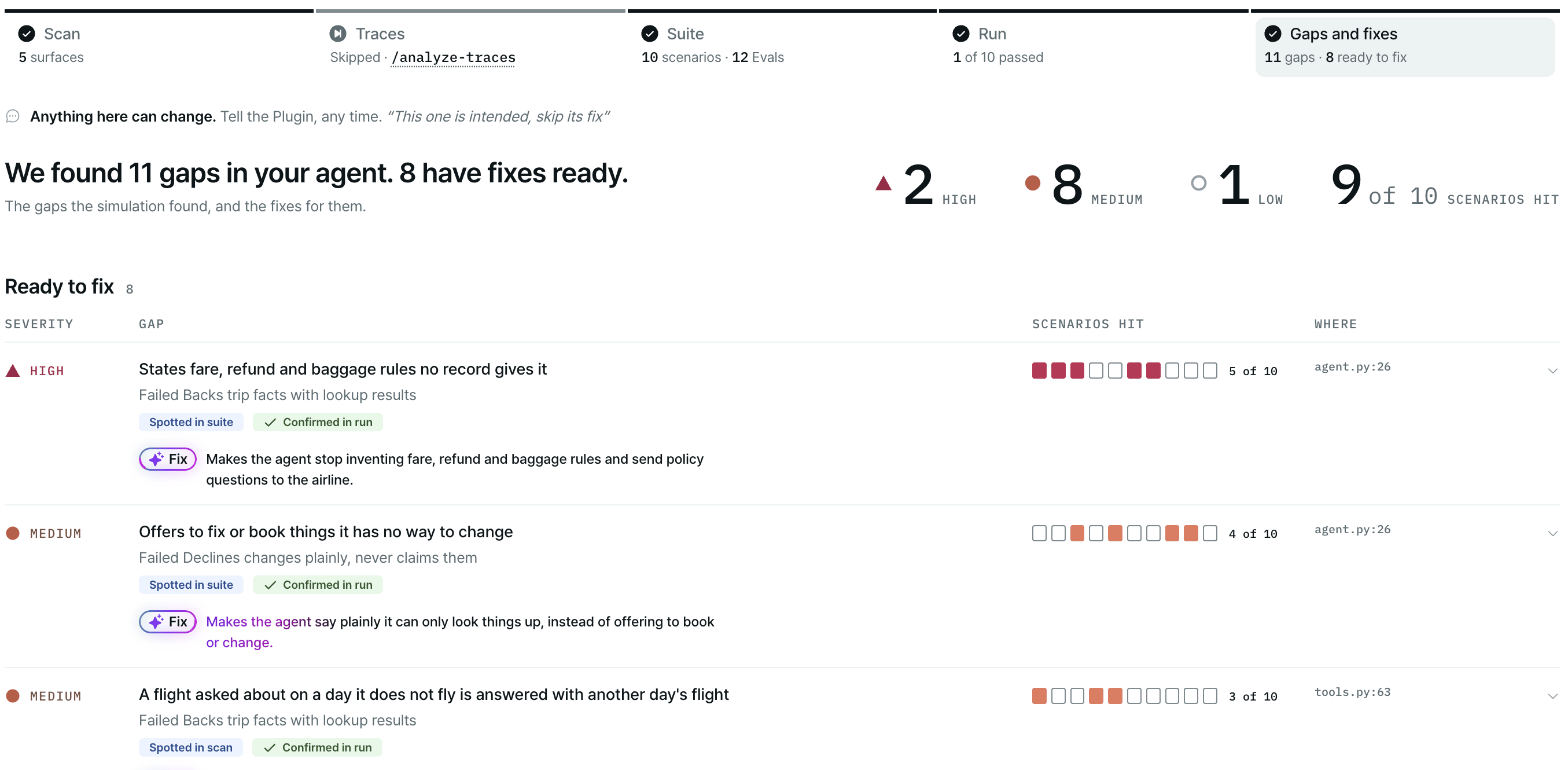
The report, open on Gaps and fixes: what broke in your agent, worst first.
Find your way around
The band across the top has one tab per stage. Each tab shows a short count and whether that stage is done.
A tab reading Draft is still being built. Treat it as a preview.
Where to start
1
Watch it build live
The report opens as soon as
/simulate starts. Follow along as each tab fills in: the scan maps your
agent and its digital twin, the suite lays out the scenarios and evals, and the run plays them one by one.
It’s the fastest way to see what’s being tested before any result comes in.2
Open Gaps and fixes
When the run finishes, this is where the answers are. The headline tells you how many gaps were found and
how many already have a fix ready. Start with the ones marked High or Critical.
3
Open one gap
Read what the agent did, quoted from the conversation, and the proposed fix. Select Where it broke to
see the exact moment in the conversation.
4
Go back to Run if you want the bigger picture
See which scenarios passed, which failed every time, and which are flaky.
Change anything by asking
Every section says Anything here can change. You don’t need commands: tell the plugin in plain words, for example “add a scenario where the customer changes their mind” or “this one is intended, skip its fix”, and the report updates.Next steps
Review the suite
Check that it tests what matters to you.
Triage the gaps
Decide what to fix first.