

- Builds your agent’s topology: maps every tool, sub-agent, knowledge base and data store your agent uses, and the flows between them.
- Decides what to mock: which systems are mocked and which run live.
- Wires the digital twin: connects every mocked system to your digital twin, so your agent’s calls land there instead of in production.
- Writes the harness: the harness that drives your agent in a simulation.
Runs as part of /simulate, or on its own with /simulation-scan-agent.
What you get
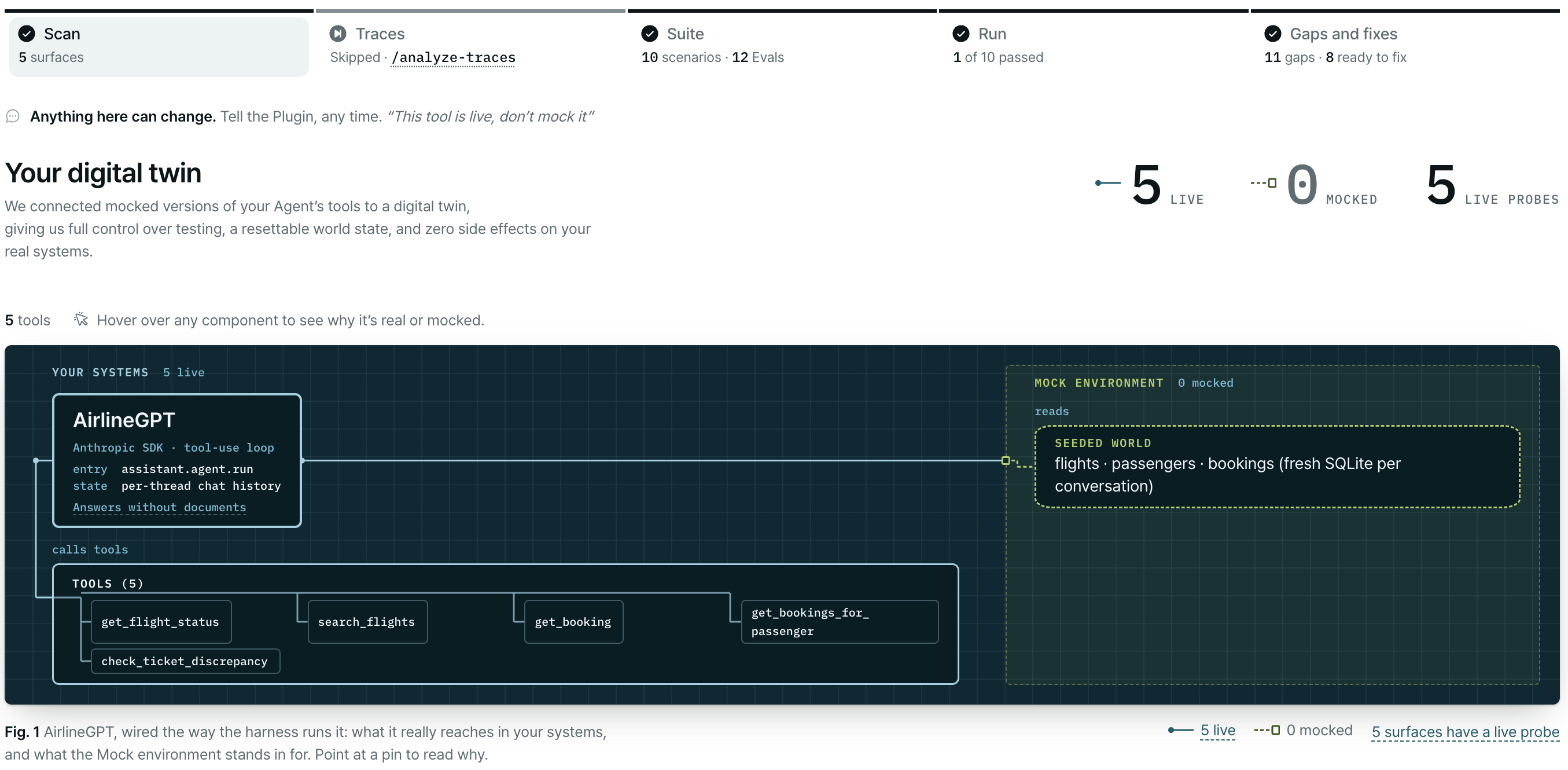
The Scan stage of the report: your digital twin, with every tool your agent calls and what is live or mocked.
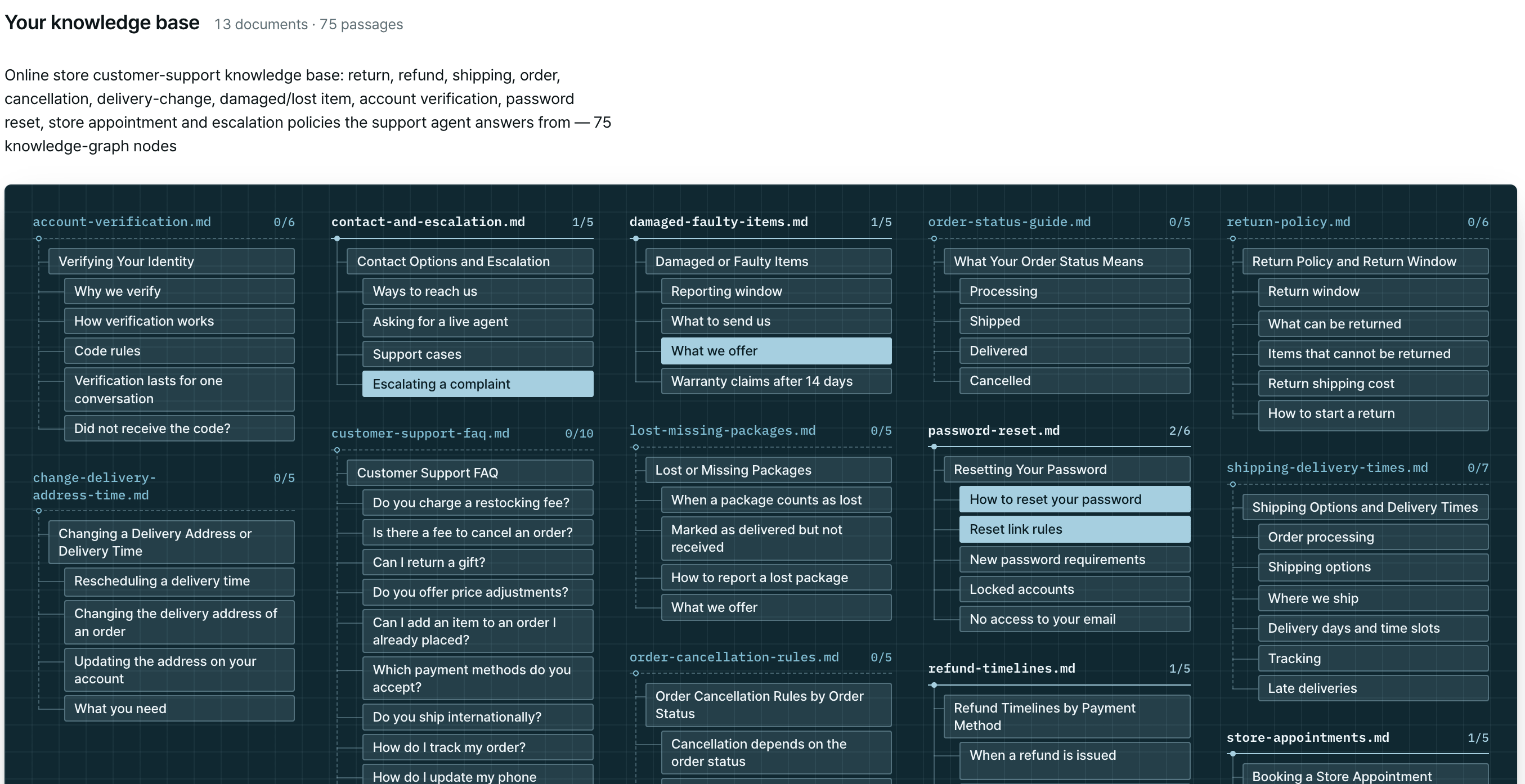
Your knowledge base in the report: each document, broken into the passages scenarios ask about.
plurai_sim/ next to your agent (or plurai_sim/envs/<name>/ if you use environments).
The scan also writes a managed block to your repo’s
.gitignore that keeps local state and extracted content out of git. See What to commit.
The specification is uploaded to the Plurai backend so the next stages can build from it. See Data and privacy.
Run the scan
You don’t have to run this on its own.
/simulate <path-to-your-agent> runs the scan as part of the full
flow. Use the command below to run or re-run just this stage.<path-to-your-agent>.”
The scan needs a connection to the Plurai backend. See Environment variables.
What happens
1
The plugin reads your agent
It follows your entry module and its imports: the agent graph, tools, sub-agents, checkpointer, context-loading steps and production dependencies. It also reads your system prompts and instruction files, local data the agent uses, knowledge sources, the endpoints in your code or config, and install notes in your README. From
.env it reads only the name of your model-provider key, never the key.2
You review what's mocked
The plugin draws your agent’s mocking map: every system your agent touches, each marked run for real (live) or mocked, with a one-line reason. You get a summary such as “Mapped your agent — 🟢 4 run for real · 🟡 6 mocked” and a link to the map. When you run the scan on its own, nothing is generated until you approve it. Under
/simulate, the scan takes its defaults, and you can change anything later in chat.3
The plugin writes the harness
It generates
simulate.py, plurai.config.yaml and the agent specification, runs its checks on the harness, and stages the files with git add. It does not commit: the commit is yours.4
You get the hand-off
The scan ends with Environment ready, a link to the mocking map, and what to run next.
The mocking map
The mocking map decides which systems your agent really calls and which it calls in your digital twin instead. It shows your agent in the center and every surface it touches: tools, sub-agents, retrieval (RAG), knowledge inlined in the prompt, and data stores. For each one it says why it is live or mocked. A surface is mocked for test control (its output isn’t deterministic), to save resources, to avoid side effects, or for isolation.- Every write to your systems is mocked by default. A live write needs your explicit opt-in, and the mocking map warns you about it.
- Reads can run live against the simulated world.
lookup_invoice for real” or “mock the CRM”. The plugin redraws it and asks again.
The same approval can also ask you to:
- Confirm what the simulated user sees, and anything the simulation leaves out.
- Confirm that the knowledge your agent answers from is complete.
- Allow commands that affect your machine during scored runs (installing packages, writing outside the scenario folder, reaching the network): Grant all or Grant none.
- Decide how to handle a live write nothing resets between conversations: mock it (recommended), have the harness reset it, or keep it live and accept that conversations see each other’s writes.
Other questions you may see
- A saved setup exists. Choose Use the saved setup (fast), Re-verify the saved bench, Re-analyze the agent (use this when your agent changed), or Focus on one component.
- Realistic documents. If your agent reads or produces documents, the plugin may ask whether scenarios should include a realistic document instead of placeholder text.
- Installing dependencies. The plugin names any install command (
pip install,npm ci, …) and waits for your yes before it runs it.
Potential issues the scan records
While it profiles your agent, the scan notes things your agent can’t currently do that the suite has to design around. Each one goes intoartifacts/agent_findings.md as potential — may be intended, with the evidence, why it might be intended, what the suite does about it, and how to confirm it. The hand-off tells you how many it found:
While profiling I recorded 2 potential issues in the agent — things it cannot currently do that the suite had to design around, and that may be intended.The scan doesn’t rank or fix them. Later stages add confirmed gaps to the same file.
Supported agents
- Python: LangGraph, Claude Agent SDK, Google ADK, CrewAI, OpenAI Agents SDK, LlamaIndex, Strands Agents, LangChain, and custom agents with no framework, such as a plain OpenAI or LiteLLM tool loop.
- Node (TypeScript or JavaScript): LangGraph.js, OpenAI Agents JS, Mastra, Vercel AI SDK, or a custom loop. The harness is still
simulate.py; it drives your agent through a bridge and needs Node 22.15 or later. - Agent platforms: Salesforce Agentforce (with a logged-in
sfCLI), n8n, and Claude Code plugin commands and skills.
Next steps
Ground in production traces
Optional: base the simulation on real conversations.
Build the suite
Stand up the mock environment and generate scenarios and evals.
The scan in the report
How the mocking map and findings appear in the report.
How it works
The five stages end to end.