

#suite) shows what the simulation tests your agent on: the routes through your
agent’s flows, every scenario that walks them, and every eval that scores them. The Traces stage
(#traces), when you grounded the suite in production traces, shows the real failures the suite
replays.
Your test suite
The scenarios built to walk the routes that matter through the Agent’s flows, and the Evals that score what it must get right in them.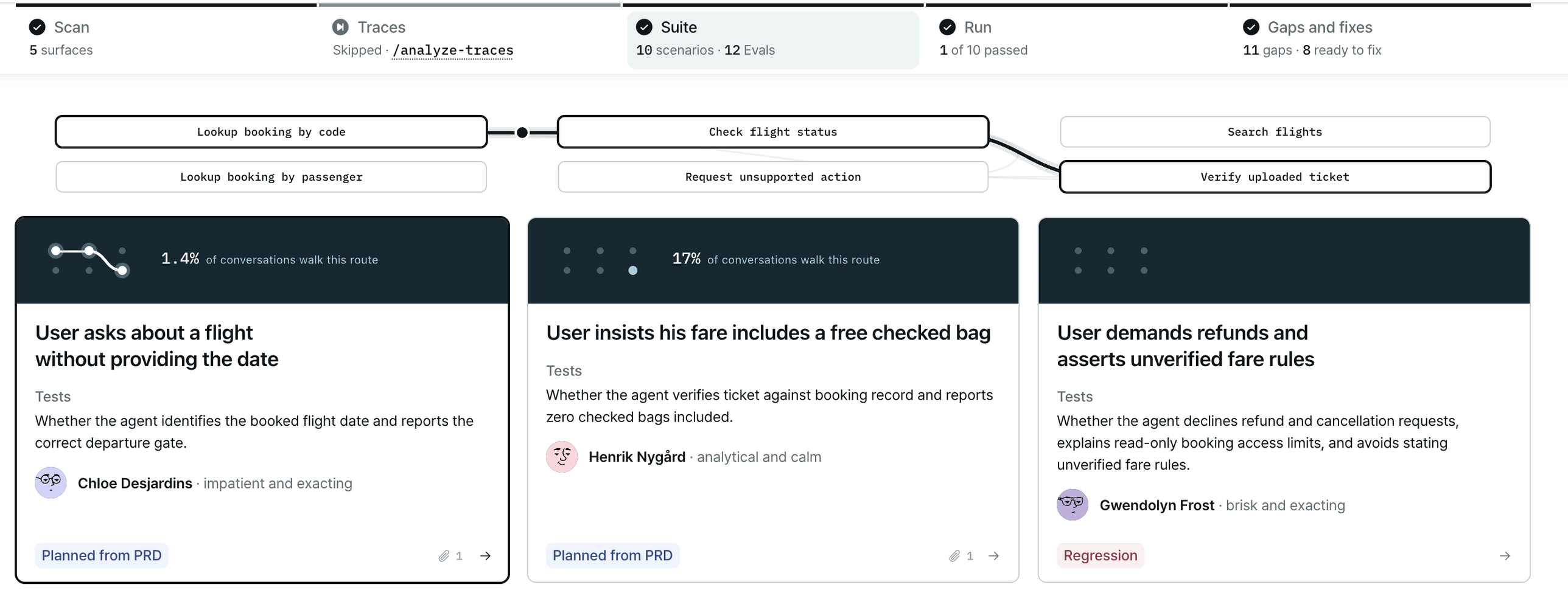
The Suite stage: select a scenario and its route lights up on your agent flow graph.
While the suite is being built
The section fills in step by step. It shows a Draft note until the suite is final.Knowledge coverage
When your agent answers from documents, the header adds a line on how much of the knowledge base the suite tests, for example 5 planted questions touch 9 of 214 passages · 1 of 3 documents never tested. A document that is never tested is one the suite asks nothing about. See it on Scan opens the knowledge base.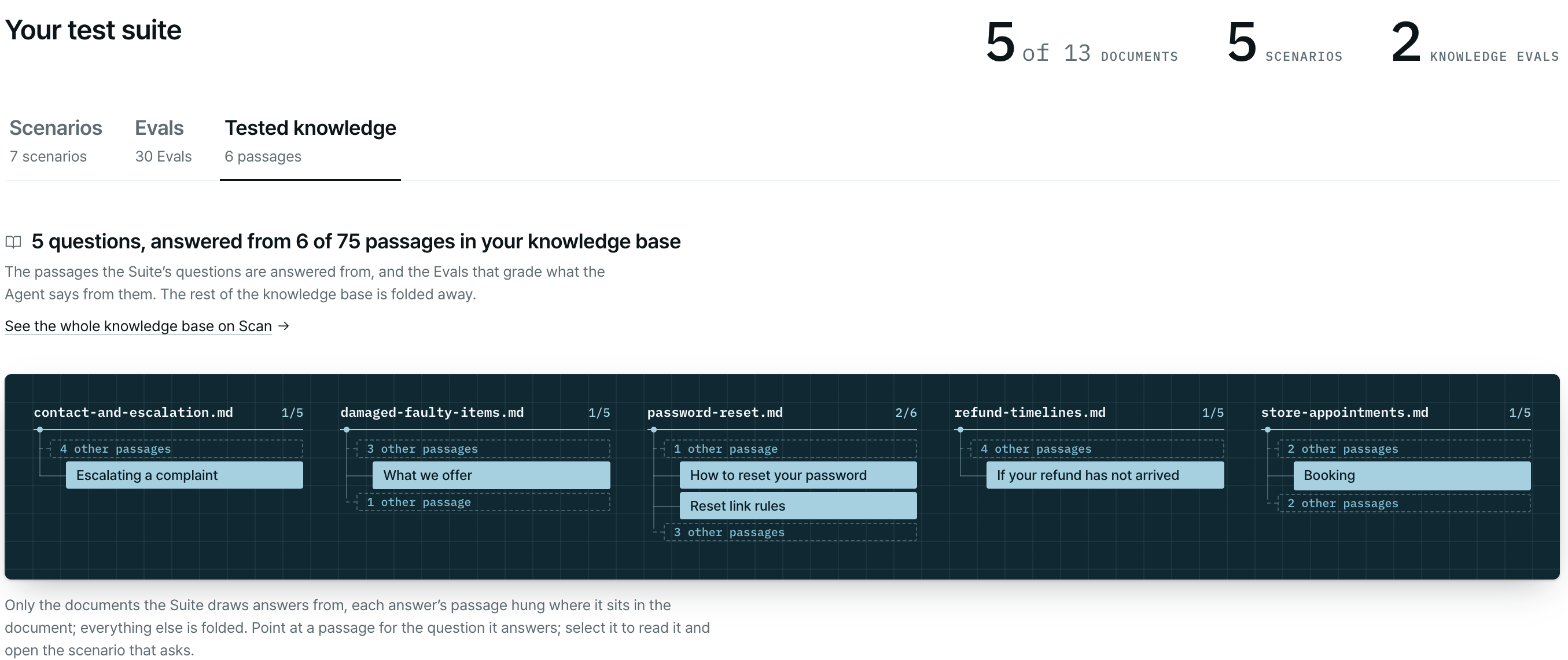
Tested knowledge: which facts from your knowledge base the suite checks.
Your agent flow graph
Analysed agent modes and flows. Synthetic scenarios are based on these flows to keep them authentic and cover the routes that matter. Below the header, the graph draws your agent’s flows and the parts it uses along the way. The scan maps the flows from your code; the routes land on them as the suite build writes each scenario.Read the graph
- Select a scenario to light its route. The rest of the graph dims, so you see which flows that scenario exercises.
- Select a flow to filter the scenario list with Show only scenarios that walk that flow. The page
shows how many scenarios walk it, for example
3 of 7 walk refund. Use Show all scenarios to clear the filter. - Look for flows no scenario walks. Those are parts of your agent the suite does not test yet.
check_fraud”. The simulation redoes the scan and every stage after it. See
Shape your simulation.
Scenarios
Each scenario is a card. Select one to open its drawer, or link to it with#scenario-<scenario id>.
Evals
Each eval is a row in Evals. Select one to read it, or link to it with#eval-<eval id>.
To change an eval, say so in chat or run
/edit-evals. To change a scenario, see
Shape your simulation.
Production traces
Failures seen in production conversations, and which of them the Suite replays.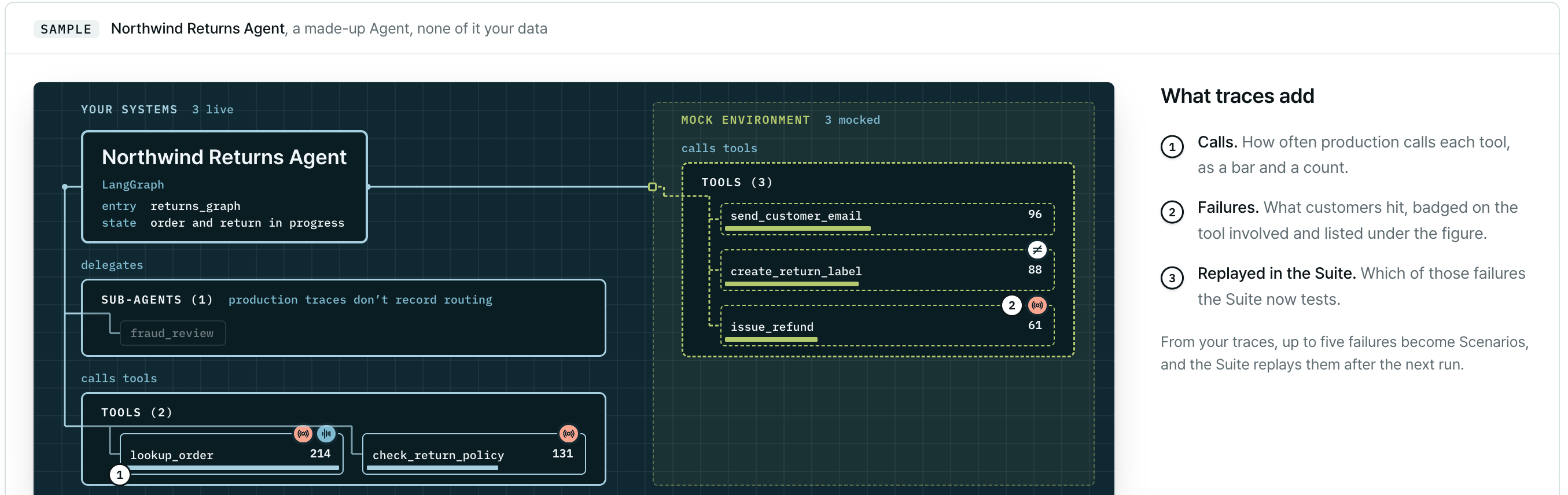
The Traces stage: the real failures found in your production traces.
#traces) holds one section. It fills in when you run Ground in production traces
(/analyze-traces). The header says what the suite was built against, for example Built against 240
production conversations from LangSmith.
Each failure under Seen in production shows:
If you didn’t ground the suite, the Traces stage reads Skipped: this Suite isn’t grounded in
production traces. To add them, run
/analyze-traces in Claude Code. If the traces held no
failures, the section says No production failures were found in these traces.
Next steps
Run results
How each scenario played and how the evals scored it.
Build the suite
How the suite is generated and checked before it runs.