

/simulate creates it at the start and updates it at every stage, so you can watch the simulation while
it runs and come back to the same link afterwards.
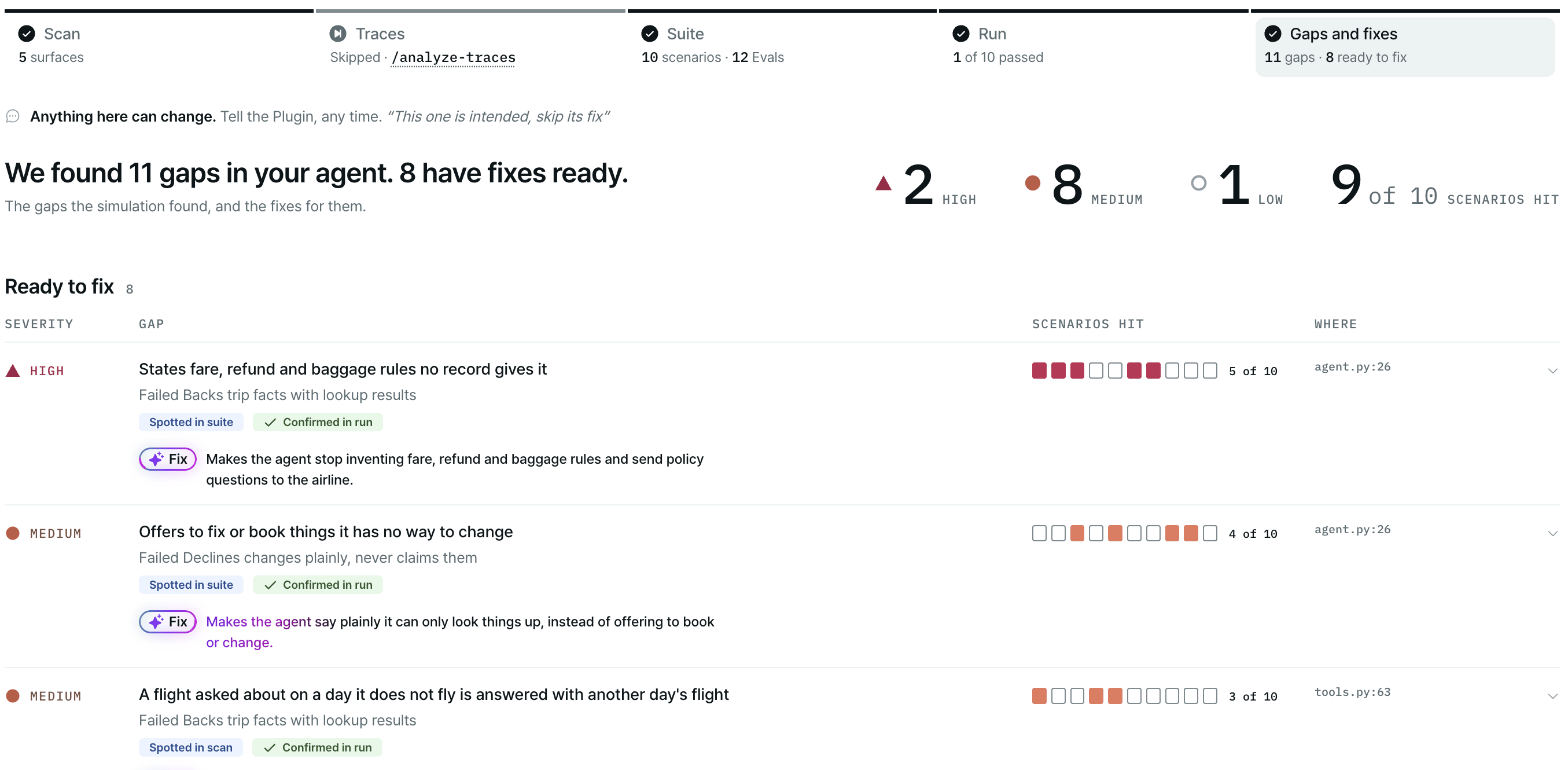
A finished report: the Stages band across the top, with the Gaps stage open.
When the report is created and updated
/simulate publishes the report as soon as it starts, before the scan has written anything. From then
on, each stage updates the same page:
Each stage command run on its own (
/simulation-scan-agent, /analyze-traces,
/simulation-generate-suite, /simulation-run, /simulation-fixes) updates the same page too. So do
the edit commands, such as /edit-evals or /edit-env.
The Stages band
The band at the top of the page has one tab per stage: Scan, Traces, Suite, Run and Gaps. The fixes stage shows inside Gaps. Each tab shows a short count when it has one, such as the number of mocked surfaces, scenarios and evals, or how many scenarios passed.
A section can also carry one of these notes:
Open and share the report
What the link opens depends on your coding agent.- Claude Code
- Codex CLI and Copilot CLI
The page opens in your browser when the run starts and updates live as it goes. The private link to it,
a page on claude.ai in your account, comes once, at the end of the run: when it finishes, halts, or you
stop it.Start Claude Code from your agent’s folder or a folder above it. From anywhere else, the page stays on
your machine and no link is published.The link is the same for the whole project, on every later run. Each publish updates the page in place, so a tab you keep
open shows the newest version when you reload it. The page is private to your account until you share
it from claude.ai.The page is also saved as a file in your project, at
plurai_sim/artifacts/report.html. That copy
updates within seconds while a Run plays, without a reload. If a publish fails, the link line points
at that file instead and says so.With a saved environment, the file lives under
plurai_sim/envs/<name>/artifacts/report.html. The artifacts/ folder is git-ignored by default, so
the report is not committed with your environment.Link to a section
Add an anchor to the report link to open a stage, or a specific item.
You can also point at one turn of one conversation:
What’s withheld under anonymization
If your environment setsanonymize: true in plurai.config.yaml, the report keeps structure, ids,
counts, verdicts and eval names, and withholds your text. The page shows Some of this report is
withheld and lists what it left out:
Under anonymization, seeded and final world records keep only their kind, and every tool call keeps its
name and status but not its arguments or response.
In every posture, the report scrubs machine paths, backend and mock hostnames, and anything that looks
like a credential, key or token before it fills the page. See Data and privacy.
Trimmed to fit
A very large run can exceed what one page holds. The report then drops the least useful data first, and says what it dropped, for example To fit, earlier Runs keep only each scenario’s first attempt. or To fit, the conversations of scenarios that passed are left out. The failing conversations of the current Run are kept longest.Light and dark
The report follows your system’s light or dark setting. Use the Switch to dark mode / Switch to light mode button to override it. Your browser remembers the choice.Sections of the report
Scan stage
Your digital twin and Your knowledge base: what is mocked, and the documents your agent answers from.
Suite and traces stages
Your test suite, Your agent flow graph, every scenario and eval, and Production traces.
Run stage
Simulation run results: the attempt grid, pass rates, consistency and every conversation.
Gaps stage
Gaps and fixes: every failure worst first, its diagnosis, its fix and the regressions kept.