

#scan) shows what the simulation will put around your agent. Your digital twin
shows which of the systems your agent calls are real and which are mocked. Your knowledge base, when
your agent answers from documents, shows those documents and the questions planted in them. Check both
before you read any results. A wrong mock or a wrong document makes every result after it wrong too.
The stage fills in when you scan your agent. The knowledge base is added when
the suite build creates it. The stage tab counts what it found, for example 4 mocked.
Your digital twin
What the Agent really reaches, and the mocked surfaces standing in for the rest, so every scenario stays controlled and free of side effects.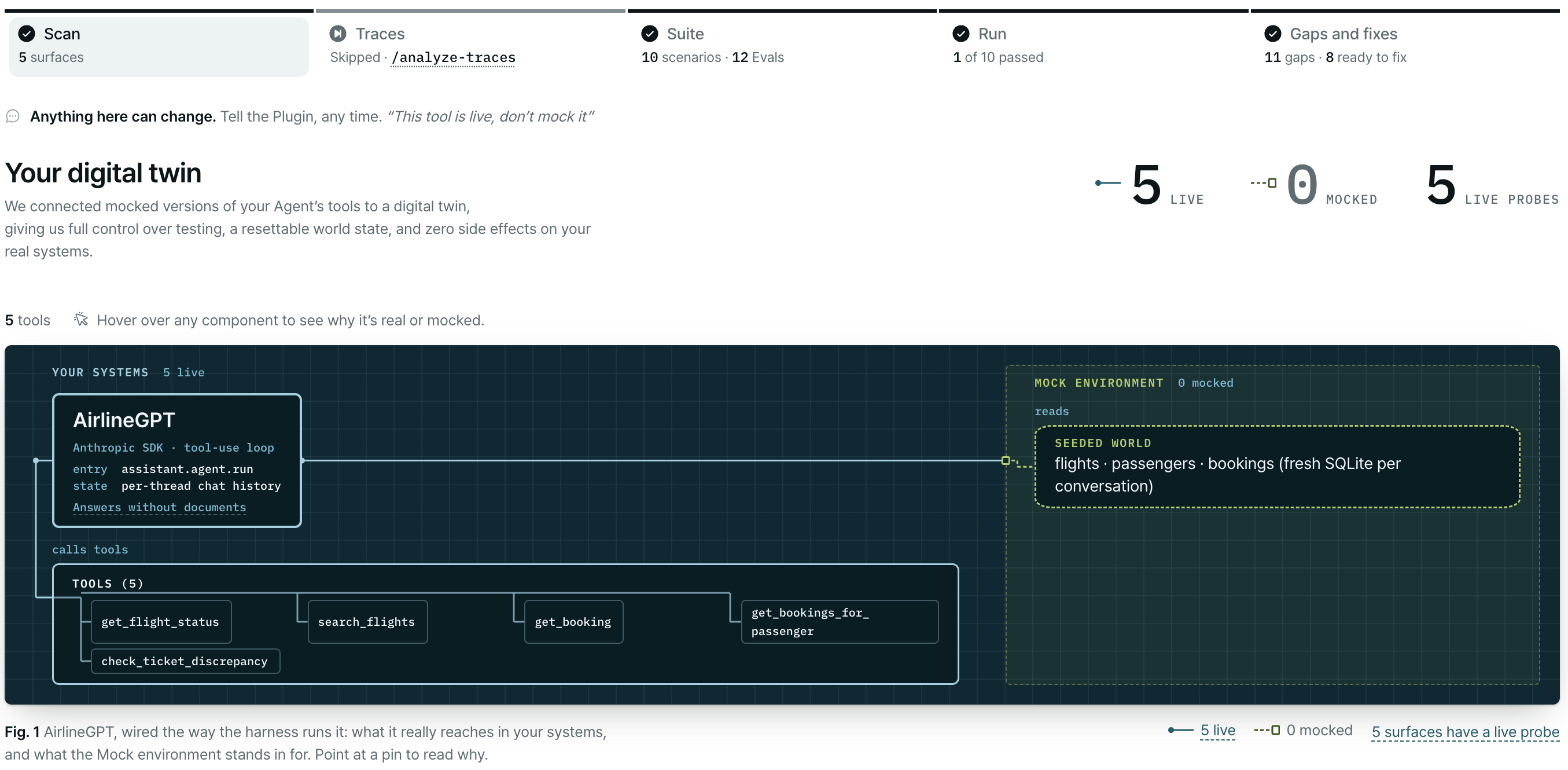
The Scan stage: your agent flow graph, with what runs for real and what is mocked.
The section header counts what it found, for example
4 mocked or 6 surfaces, and lists the kinds
it wired: 3 tools, 1 sub-agent.
The surface table
Open a pin, or use the Lens control to switch between live, mocked and live probes, to read each surface in detail:What to check
- Every surface that writes to production, sends messages or moves money is under Mock environment. A surface under Your systems is called for real on every conversation.
- The Seeded world matches the records your agent expects, such as accounts, orders or tickets.
- If the agent answers from documents, Grounding reads Answers from your documents and Your knowledge base appears below.
/edit-env. See
Build the suite and Ground in real records.
In a conversation, each tool call says who answered it: served by the twin or your system.
See Run results.
Your knowledge base
This section appears below Your digital twin when your agent retrieves from documents and a knowledge base was built for it. Link to it with#knowledge.
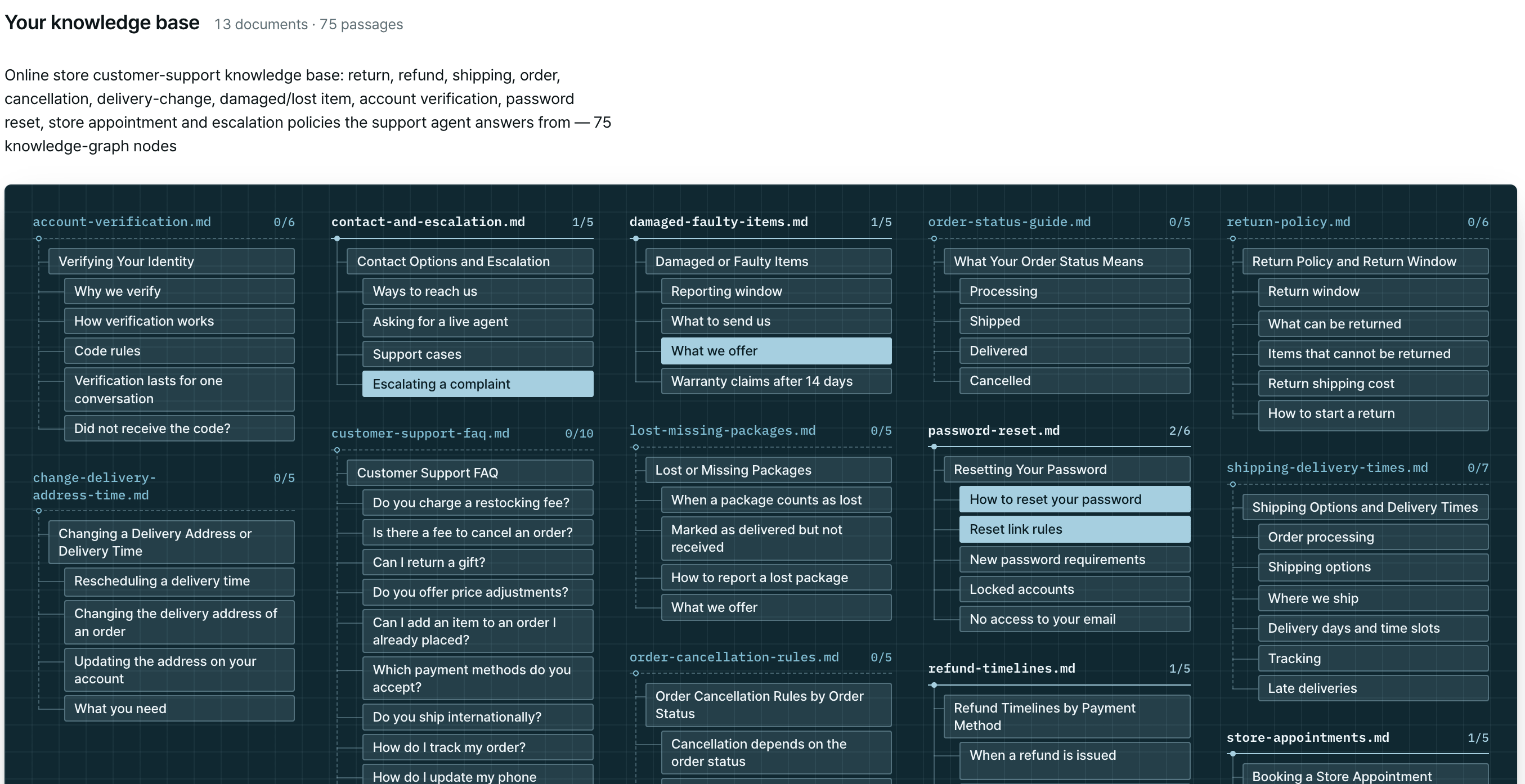
Your knowledge base, as the Scan stage shows it.
Point at a passage to see where it sits and what asks about it. Select it to read it. The passage view
shows its Section, the text, and Asked in this Suite: each planted question, the scenario, and the
turn that asks it. Use the arrow keys to move between passages.
The Suite stage header tells you how much of the knowledge base the suite tests, and links back here
with See it on Scan. See the coverage line.
To fix a wrong fact or a bad question, say so in chat or run
/edit-env. See
Use a knowledge base.
Next steps
Suite and traces stages
Your agent flow graph, every scenario and eval, and the production failures the suite replays.
Scan your agent
How the scan maps your agent and decides what to mock.